How to explore Google Docs with multiple tabs
Process Feedback provides tools to help you analyze the writing process in Google Docs that contain multiple tabs.
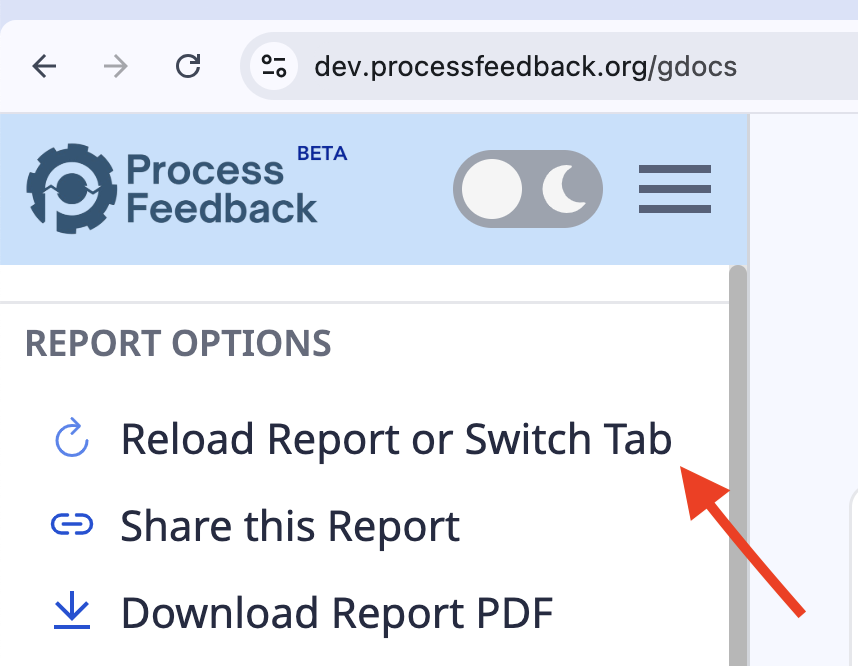
“Reload Report or Switch Tab” option in the sidebar
You do not need to return to Google Docs each time you want to explore a different tab in the same document.
Once the report is open, select the tab you want to explore in your Google Doc. Then click Reload Report or Switch Tab in the sidebar to reload the report with different settings or to generate it for another tab in the same document.
Exploring copy-paste across multiple tabs
By default, Process Feedback treats paste actions from other tabs within the same document as external paste. This is intentional because it analyzes each tab independently.
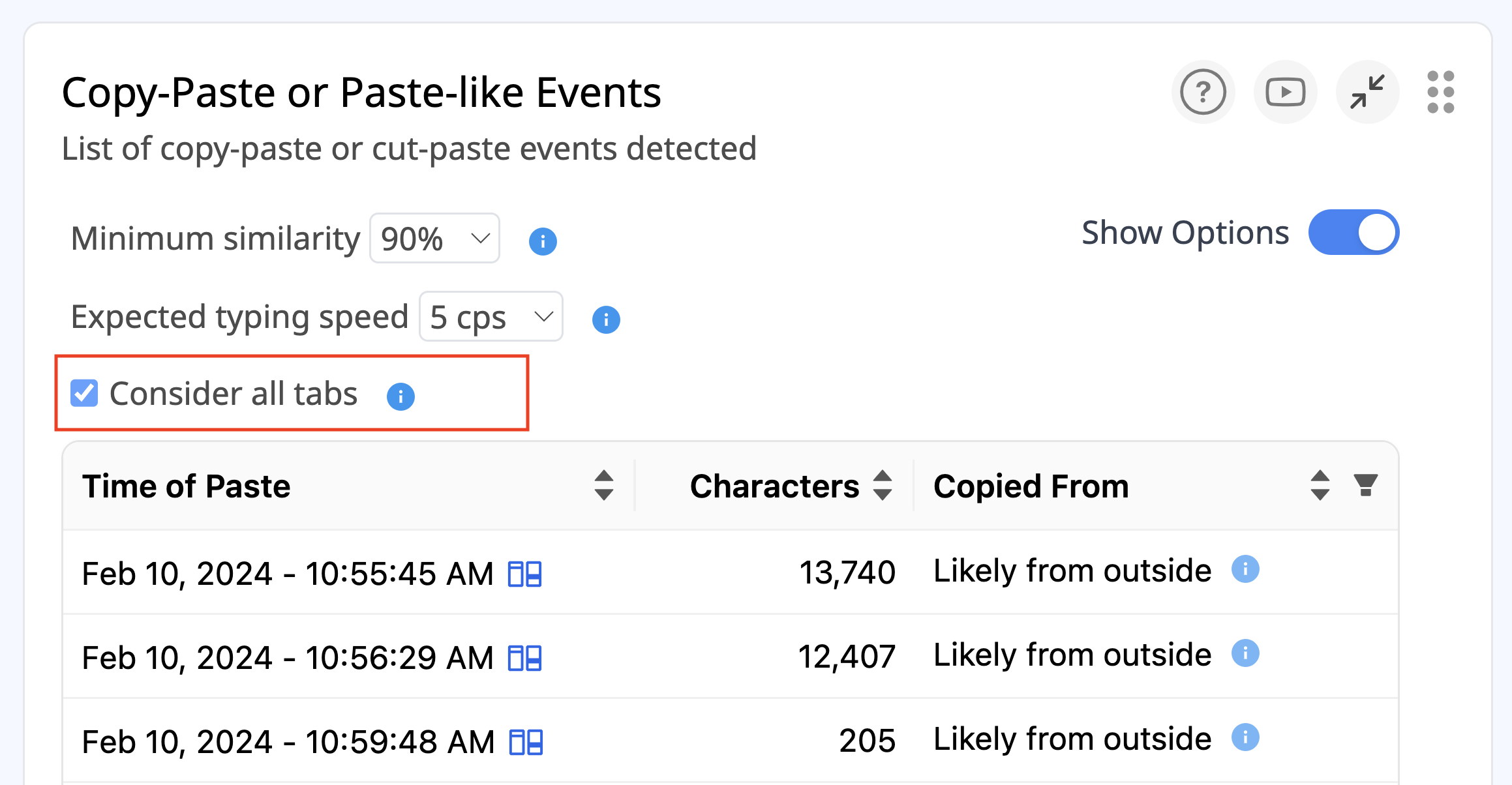
If you want paste actions from other tabs in the same document to be labeled as From Within the Same Document, open the Paste Events section of the report and enable Consider all tabs.
Disable this option for very large documents, as it can significantly slow down paste detection and classification.