I have a large class. How can I use Process Feedback?
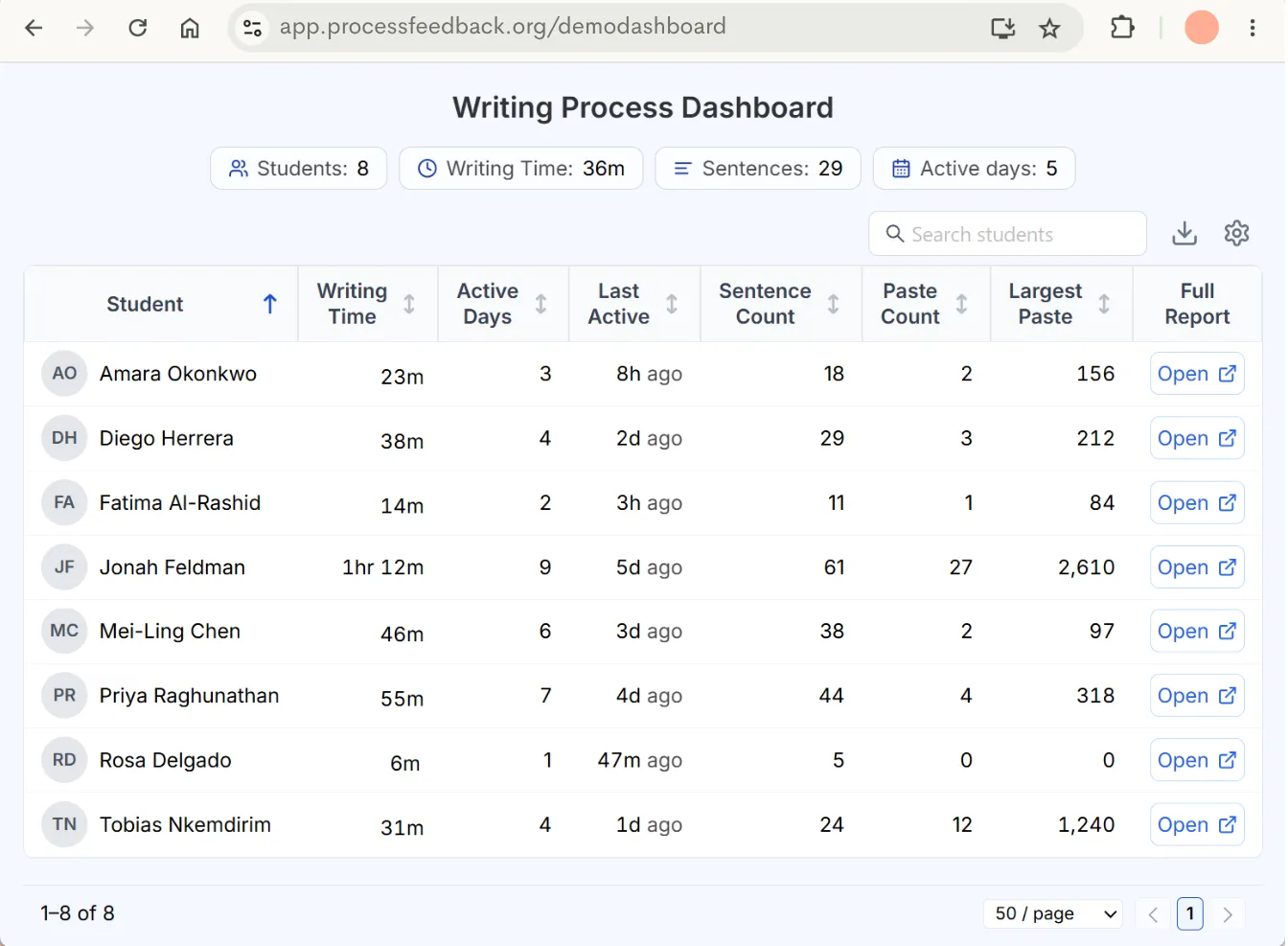
Process Feedback has a teacher dashboard that shows many students’ writing processes in one table. You can review, compare, and discuss a whole class without opening each report one by one.
There are three ways to open the dashboard. Which one fits depends on where your students write.
Option 1. Use the Writing Process Dashboard button in Google Drive
If your students write in Google Docs and their Docs are in one Google Drive folder, Process Feedback places a Writing Process Dashboard button at the top of that folder. One click opens a dashboard for every Doc in the folder.
This works well with Google Classroom, which keeps each assignment’s submissions in its own Drive folder.
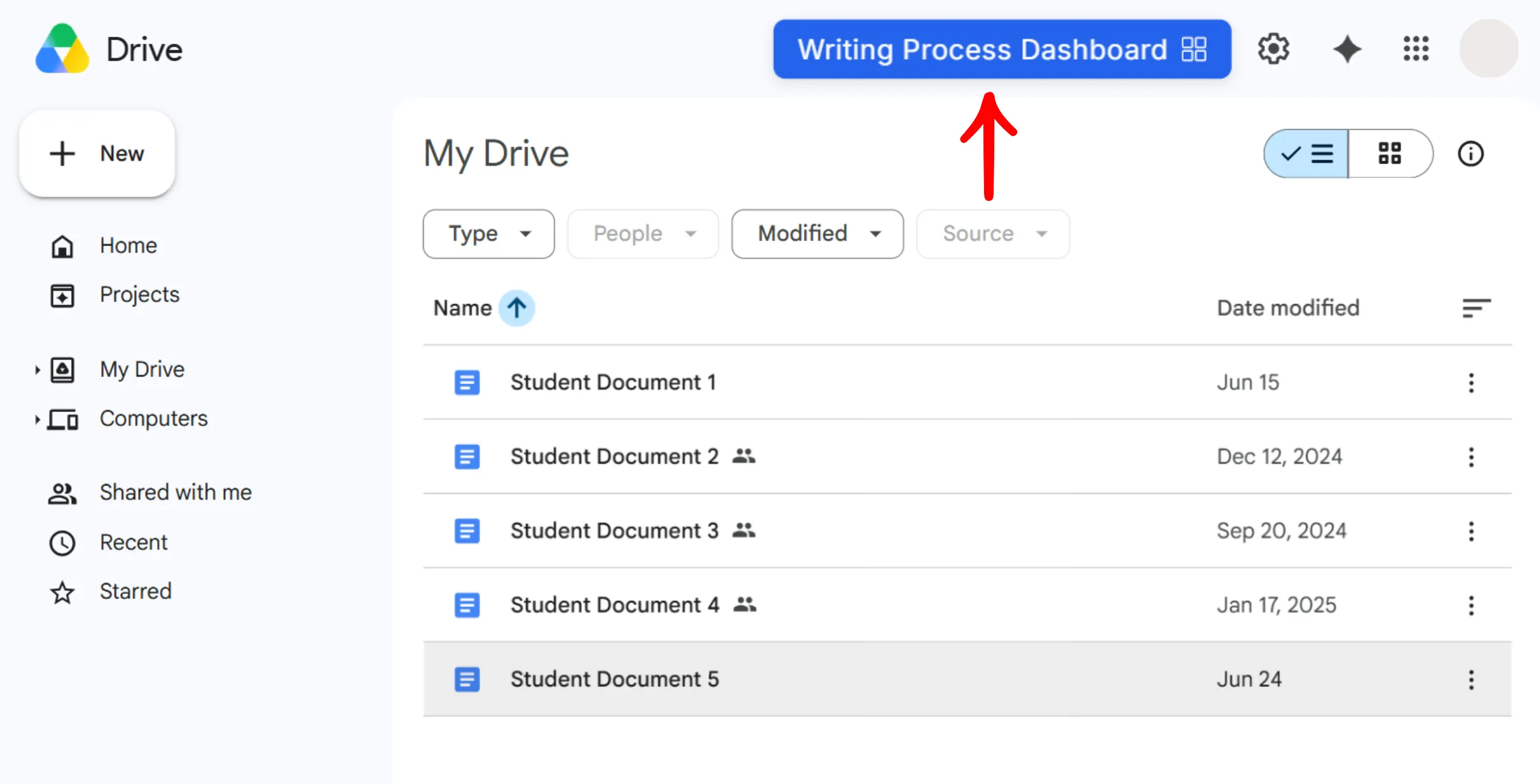
For the steps with screenshots, see how Process Feedback works in Google Classroom and how to open the teacher dashboard to compare multiple Google Docs.
Option 2. Open the dashboard from an assignment or your LMS
If students submit their work through Process Feedback, the dashboard is already there. There is nothing to download or load.
- Create an assignment: when you create an assignment in Process Feedback, every submission appears in the assignment’s dashboard.
- LTI integration: in Canvas and other LMSs connected through LTI, you can open the dashboard from the assignment. See how LTI works in Canvas.
- Moodle plugin: with the Moodle plugin, you can review the whole class at once in the dashboard.
Option 3. Collect process data ZIP files and load them into the dashboard
Almost every place where you can open a writing process report also lets you download the writing process data as a ZIP file. You can collect these ZIP files and load them into a dashboard all at once.
Step 1. Collect the ZIP files
Students can download their own ZIP files and submit them to you. Common ways to collect them:
- Google Form upload. Create a Google Form where students upload their ZIP files. All submissions are stored in one Google Drive folder.
- LMS assignment upload. Create an assignment in your LMS (Canvas, Blackboard, Moodle, and others) for the ZIP files, then download all submissions at once.
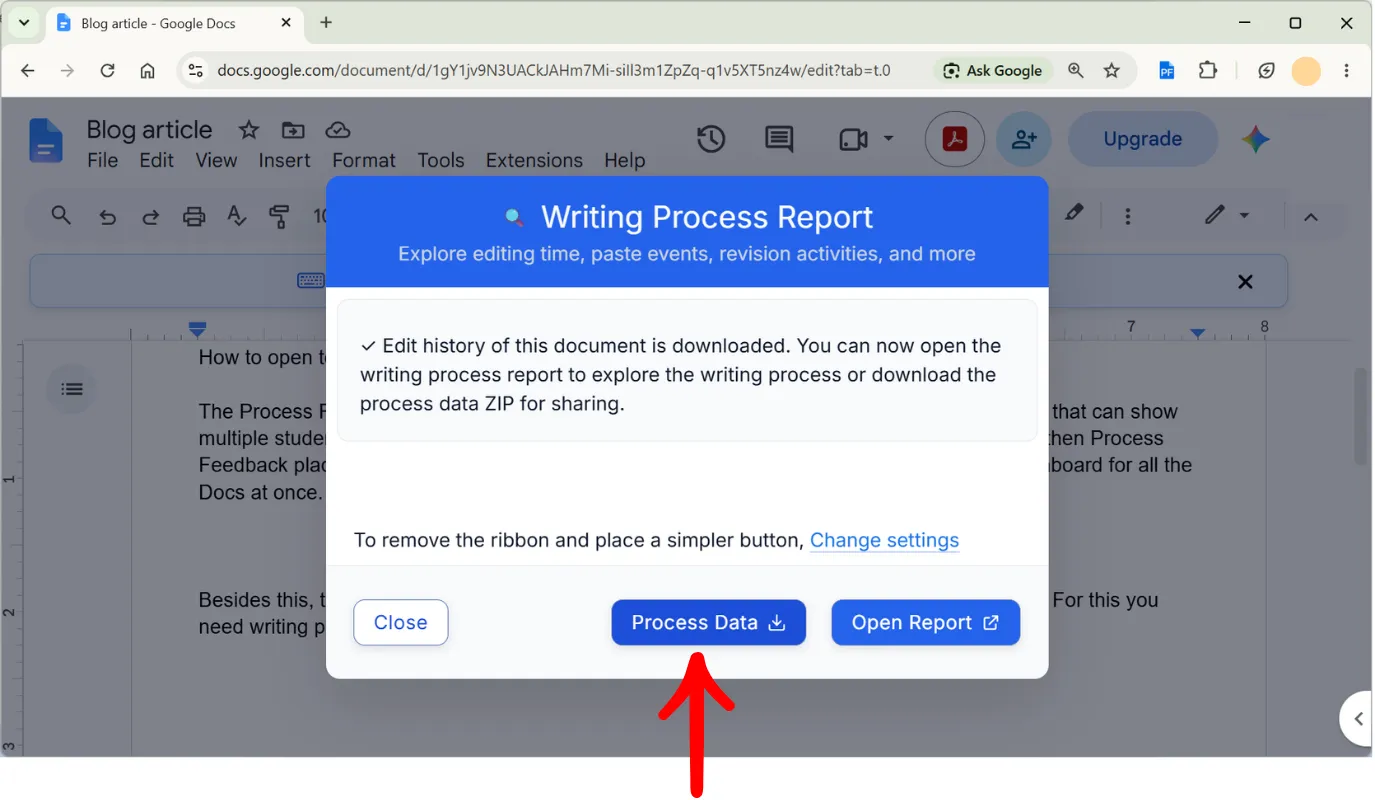
You can also download the ZIP files yourself. In Google Docs, open a Doc, click Writing Process Report, and click Process Data instead of Open Report.
Step 2. Load the ZIP files into a dashboard page
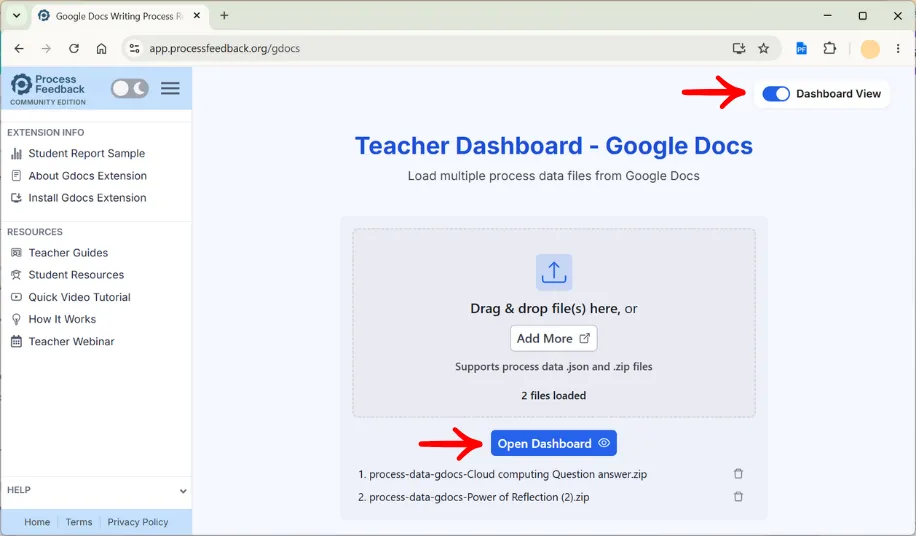
Open the dashboard page that matches where the ZIP files came from, and load all the files at once:
- Google Docs ZIP files: app.processfeedback.org/gdocs
- ZIP files from all other sources (online editor, LMS, and others): app.processfeedback.org/exploreprocess
Notes
- We use the word “load” instead of “upload” because ZIP files are processed locally in your browser and are not sent to Process Feedback servers.
- The dashboard has been tested with up to a few hundred students’ reports at once. If you need to load more, or run into problems, please contact us.