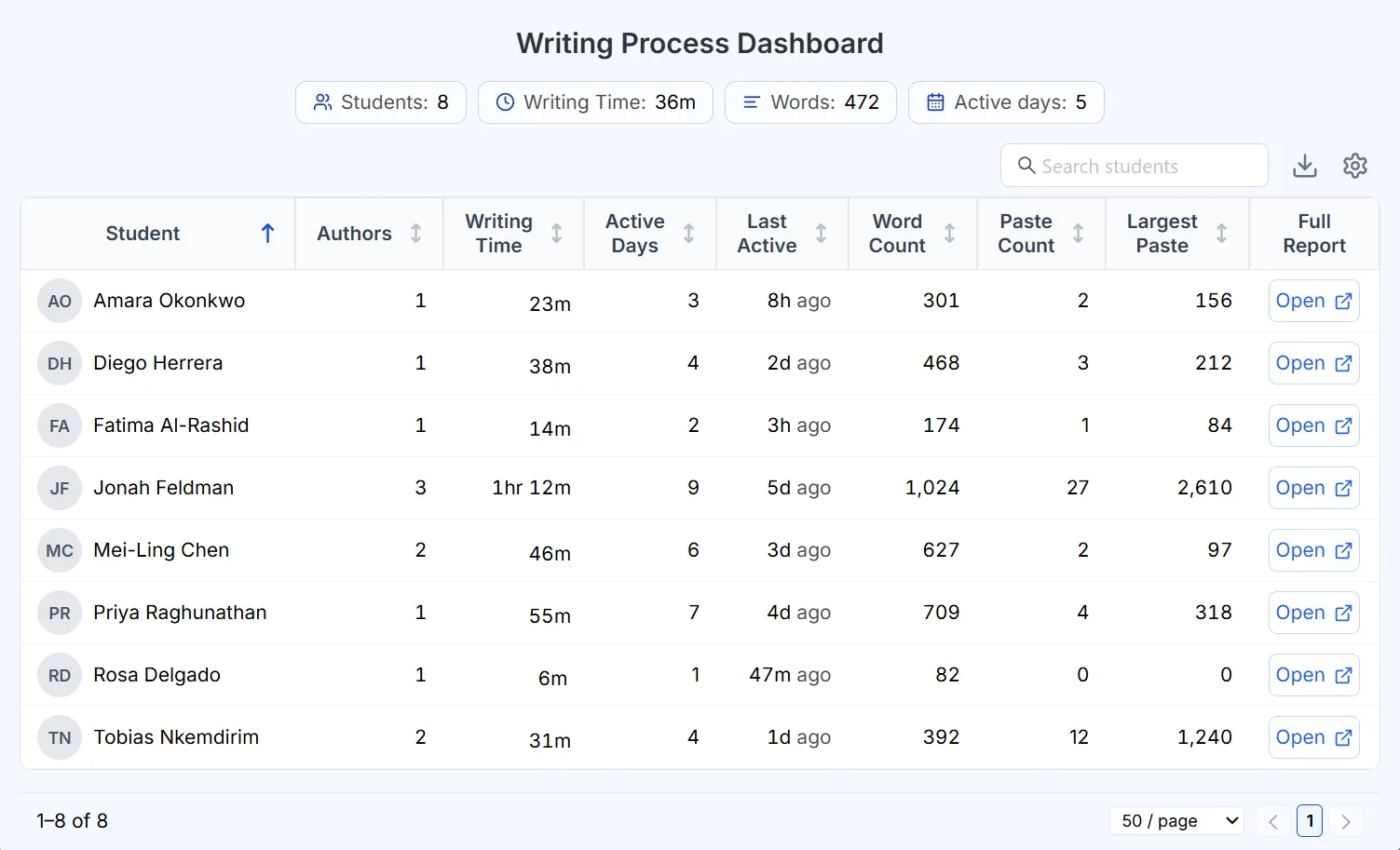
How to open the teacher dashboard to compare multiple Google Docs
The Process Feedback for Google Docs extension can open a Writing Process Dashboard. The dashboard shows multiple students’ writing processes in a single table, so you can explore and compare them without opening each report one at a time.
There are two ways to open a teacher dashboard.
Option 1. Open the dashboard from a Google Drive folder
If all the Google Docs live inside a single Drive folder, Process Feedback places a Writing Process Dashboard button at the top of that folder. One click opens a dashboard for every Doc in the folder.
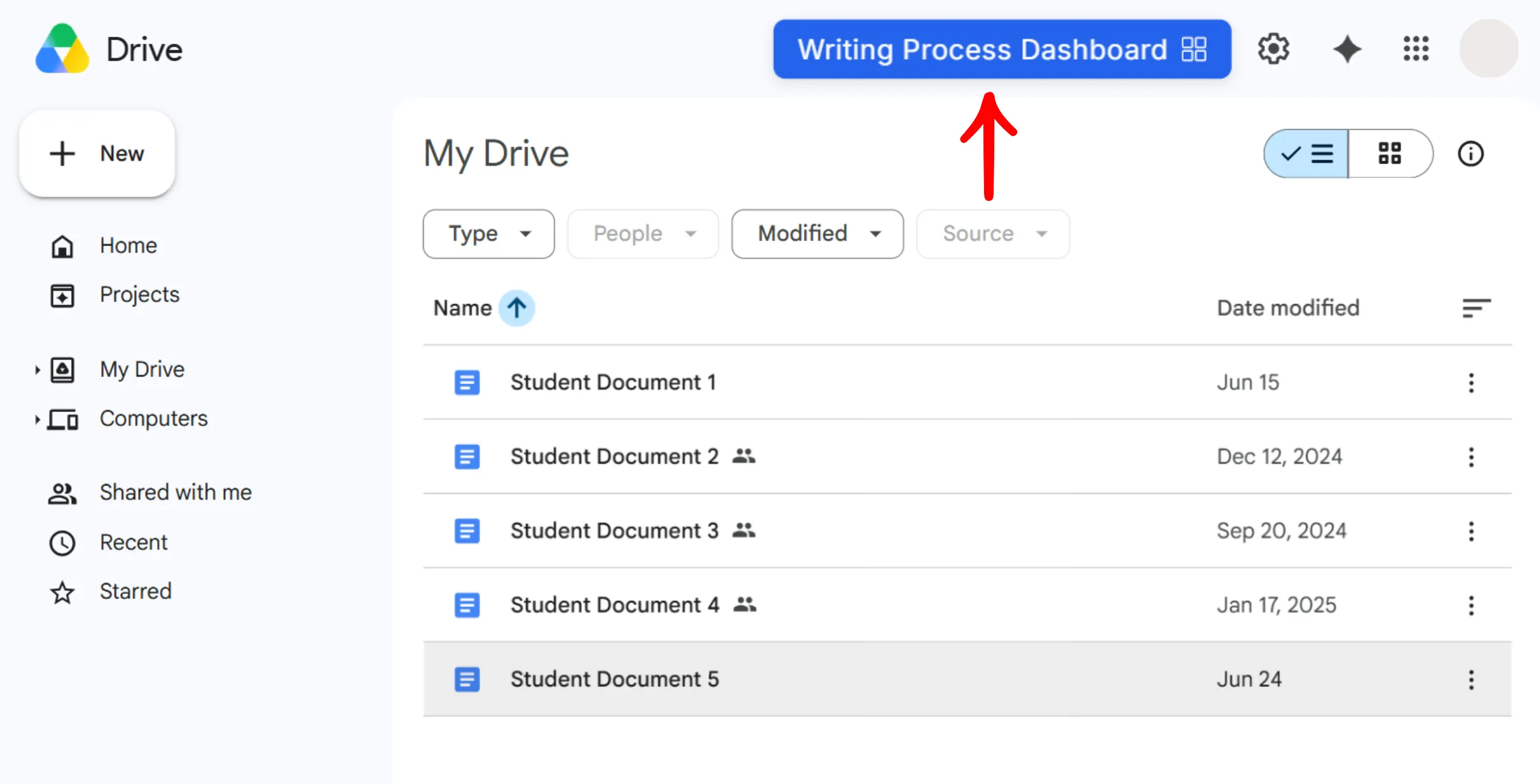
Option 2. Load process data ZIP files into the dashboard
Use this option when the Google Docs are not all in one Drive folder. It requires the writing process data ZIP file for each Google Doc you want in the dashboard.
Step 1. Download the process data ZIP for each Google Doc
Open the Google Doc and click the Writing Process Report button. In the popup that opens, click Process Data instead of Open Report. The ZIP file is saved to your computer.
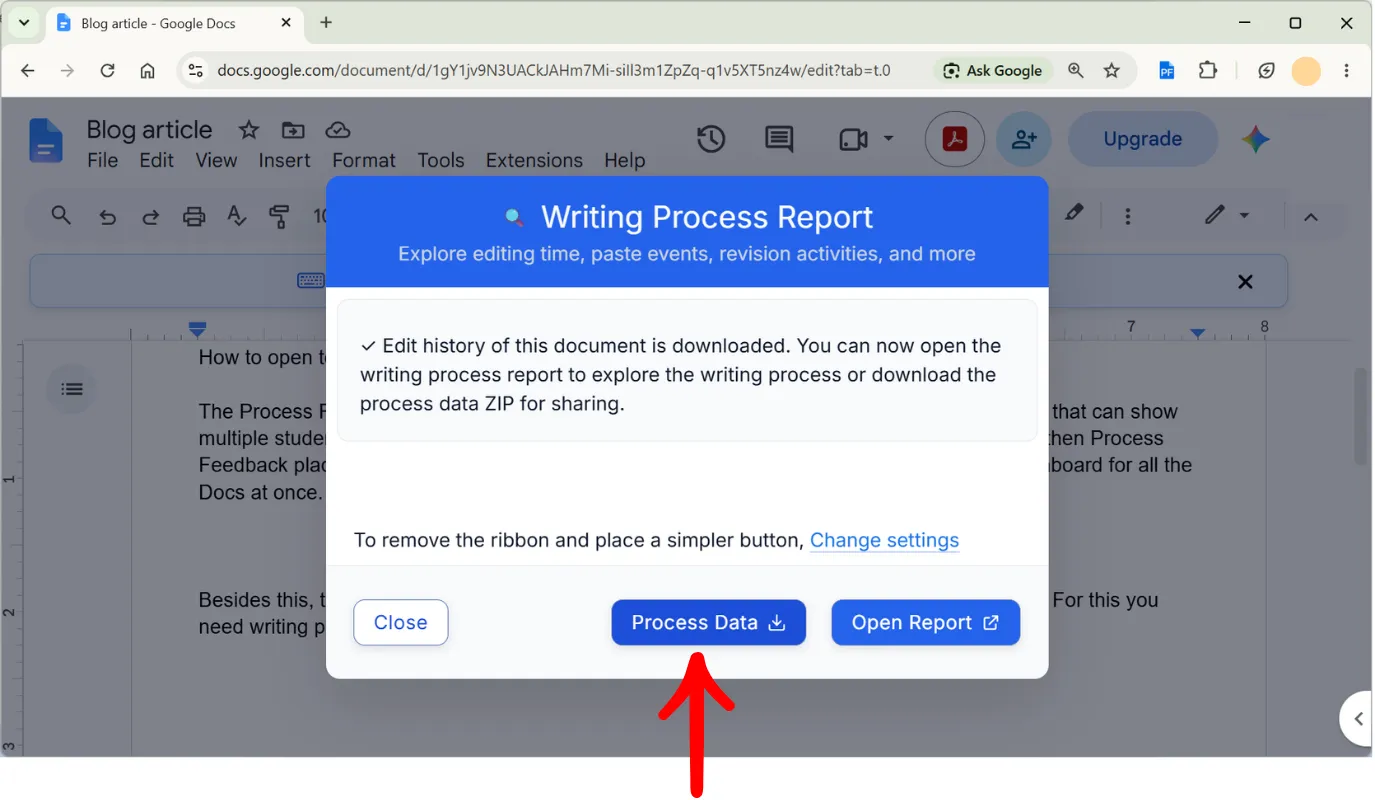
Repeat this for each Doc. If the Docs are all in one Drive folder, Option 1 above is faster.
Step 2. Load the ZIP files into the dashboard page
Open the dashboard page in the Process Feedback application, turn the Dashboard View toggle on, and then load all the downloaded ZIP files at once.
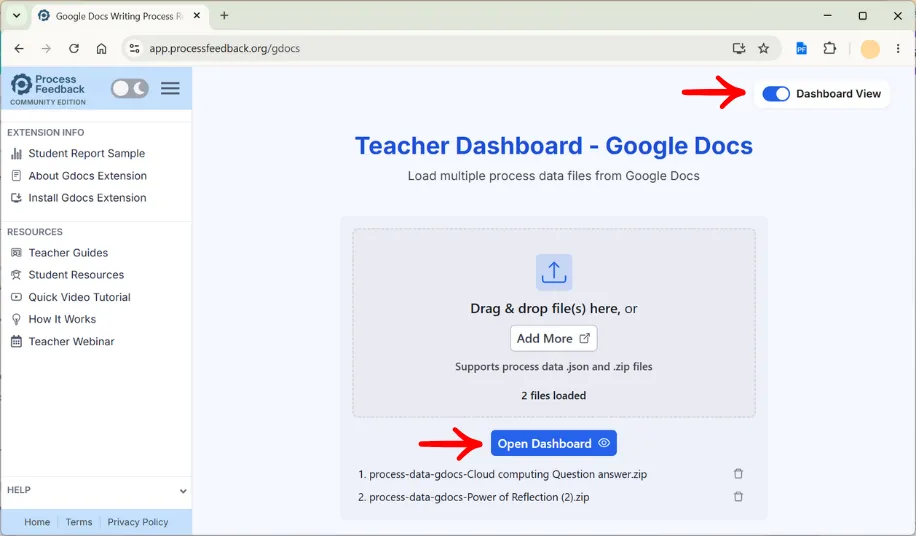
The ZIP files are processed locally in your browser. Nothing is sent to Process Feedback servers.
Step 3. Choose your columns and open the dashboard
Click Open Dashboard, select the columns you want to see, and continue through the remaining steps. The Writing Process Dashboard opens with one row per document.